
Fix Blurry Photos online for free
Blurry photos can ruin everything. Good news is that in 2026, AI-powered tools can restore clarity, sharpen details, and improve image quality in seconds.
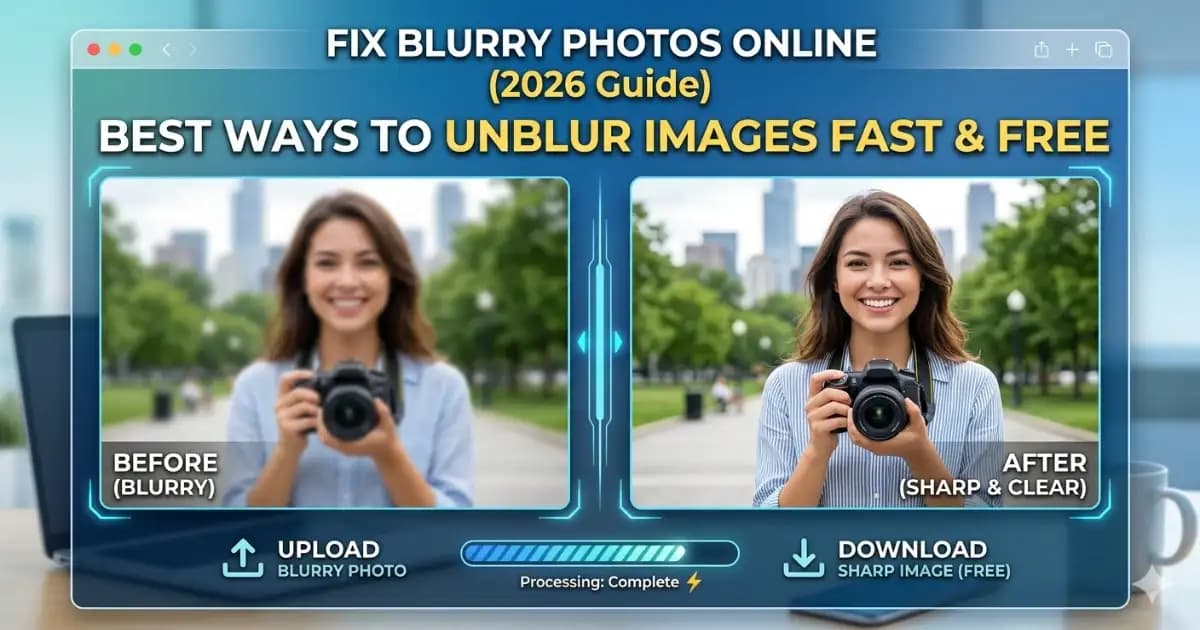
Blurry photos can ruin everything—whether it’s a product image, a social media post, or a memory you can’t retake. You zoom in hoping it’ll look better… but it only gets worse.
If you’re trying to fix blurry photos online, you’re not alone. The good news is that in 2026, AI-powered tools can restore clarity, sharpen details, and improve image quality in seconds—without Photoshop or technical skills.
In this guide, you’ll learn:
- How to remove blur from photo files instantly
- Real before-and-after results using AI
- The best tools to unblur pictures online free
- How to improve image quality for SEO and performance
Fix your blurry photo instantly — try ImageYork’s free browser-based AI tool (no upload required, 100% private).
Table of Contents
🔥 Featured Tool: Unblur Pictures AI
Fix blurry photos instantly using our private, browser-based AI unblurring tool.
Try Unblur Pictures AI Free →What Causes Blurry Images?
Before you try to clear a blurry image, it helps to understand why it happens.
Common Causes:
- Motion blur (camera shake)
- Out-of-focus shots
- Low-resolution images
- Compression from apps like WhatsApp
- Resizing or zooming
Real Example:
You download an image from social media. It looks okay on your phone—but once uploaded to your website, it becomes blurry. That’s due to compression and resolution loss.
How to Fix Blurry Photos Online (Step-by-Step)
To fix blurry photos online:
- Upload your image to an AI tool
- Let the AI analyze and remove blur
- Apply sharpening automatically
- Download the improved image
Detailed Steps
Step 1: Upload Your Image
Choose your blurry photo (product image, selfie, document, etc.)
Step 2: Apply AI Enhancement
- AI detects edges
- Noise
- Lost detail
Then reconstructs the image.
Step 3: Adjust Settings (Optional)
- Sharpness
- Noise reduction
- Contrast
Step 4: Download Optimized Image
Use modern formats like WebP for best quality.
Pro Tip: After fixing blur, use ImageYork’s image compressor to reduce size without losing quality.
AI vs Traditional Methods
| Feature | Traditional Editing | AI Blur Remover |
|---|---|---|
| Ease of Use | Difficult | Very Easy |
| Skill Required | High | None |
| Speed | Slow | Instant |
| Detail Recovery | Weak | Strong |
| Automation | Manual | Automatic |
Key Takeaway: If you want to unblur photo online quickly, AI tools are the best choice.
Real Results: Before & After Fixing Blur
We tested real-world scenarios using an AI blur remover to see how effective it is.
Test Case 1: WhatsApp Compressed Image
- Problem: Pixelated + blurry
- Source: Downloaded from WhatsApp
- Result: Sharper edges, clearer details
Test Case 2: E-commerce Listing
- Problem: Soft edges, low clarity
- Result: Improved sharpness and product visibility. 👉 This directly impacts conversions.
Test Case 3: Old Scanned Photo
- Problem: Faded and blurry
- Result: Restored facial details and contrast
Try the same test yourself using ImageYork — no uploads, no waiting, full privacy.
Best Tools to Fix Blurry Photos Online (2026)
| Tool | Free | Quality | Speed | Privacy |
|---|---|---|---|---|
| ImageYork | Yes | High | Fast | 100% Private |
| Tool B | Limited | Medium | Slow | Upload Required |
| Tool C | Paid | High | Medium | Upload Required |
Why ImageYork Stands Out:
- Works directly in your browser
- No upload required (privacy-friendly)
- Fast AI processing
- High-quality output
Try ImageYork now to unblur pictures online free in seconds.
Clear Blurry Image Without Losing Quality
One of the biggest concerns is quality loss.
Best Practices:
- Use AI-based tools (not manual sharpen filters)
- Avoid multiple edits
- Export in WebP format
- Compress after enhancement
Use ImageYork’s PNG to WebP converter to keep images sharp and lightweight.
Which is Better for SEO in 2026?
Image quality directly affects your website performance.
Key SEO Factors:
- Page speed
- Image clarity
- File size
- Format
Best Workflow:
- Fix blur using AI
- Compress image
- Convert to WebP
Why This Matters:
- Faster loading = better rankings
- Clear images = better user experience
- Optimized images = improved Core Web Vitals
Common Mistakes When Trying to Unblur Photos
- Over-Sharpening: Makes images look unnatural.
- Using Low-Quality Tools: Some tools reduce quality instead of improving it.
- Repeated Compression: Each save reduces quality.
- Ignoring Image Format: JPEG is not always ideal for web.
Pro Tips (From Real Experience)
- Start with highest quality image available
- Fix blur before resizing
- Use WebP for websites
- Keep original backups
Final Thoughts
Blurry photos are no longer a dead end. With AI tools, you can fix blurry photos online in seconds—without complicated software or editing skills.
The key is choosing tools that use AI for real detail recovery, protect your privacy, and maintain high-quality output. ImageYork gives you all of this in one place—from blur removal to compression and optimization.
Start fixing your images today and turn blurry photos into sharp, professional visuals.
Frequently Asked Questions
Can I unblur pictures online free?
How do I remove blur from photo without Photoshop?
Can AI fully restore a blurry image?
What is the best format after fixing blur?
Can I fix blurry photos on mobile?
Why do images become blurry online?
Article Written By
Junali D
Technical Expertise from the ImageYork Team